Canva for Presentations: Design Slides That Stand Out

Updated: Jan 2, 2025
Presentations are a powerful medium to communicate ideas, tell stories, and persuade audiences. However, the effectiveness of your presentation often hinges on its design. Canva, with its user-friendly interface and extensive features, has become a go-to tool for crafting professional and visually appealing slides.

Let’s explore how Canva can transform your presentations and help you leave a lasting impression.

Why Use Canva for Presentations?
Ease of Use: Canva’s drag-and-drop interface ensures that even beginners can create stunning slides without prior design experience.
Wide Range of Templates: With thousands of professionally designed templates, you’ll find options for every occasion, whether it’s a business pitch, academic presentation, or creative portfolio.
Customizable Designs: Canva allows you to tailor every aspect of your slides, from fonts and colors to layouts and animations, ensuring your presentation aligns perfectly with your brand or message.
Key Features for Outstanding Presentations
1. Professional Templates
Canva offers a variety of templates to kickstart your presentation. Choose from themes like corporate, modern, creative, minimalist, and more. Templates are fully customizable, enabling you to adapt them to your content effortlessly.

2. Brand Kit Integration
For consistent branding, Canva’s Pro users can create a brand kit. Upload your logo, brand colors, and fonts to ensure every slide reflects your unique identity.
3. Engaging Visual Elements
Enhance your slides with Canva’s vast library of elements, including:
Charts and Graphs: Visualize data with customizable charts and infographics.
Icons and Illustrations: Add context and personality to your content with Canva’s extensive icon library.
Stock Images and Videos: Choose from millions of high-quality photos and videos to create impactful visuals.
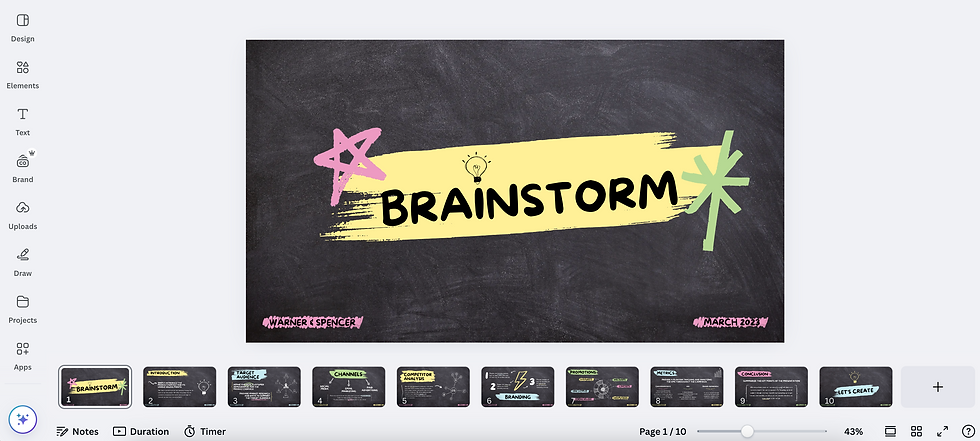
4. Animation and Transitions
Bring your slides to life with subtle animations and transitions. Canva’s animation tools allow you to control the movement of elements, making your presentation dynamic and engaging.
5. Presenter View and Notes
Canva’s Presenter View lets you display your slides while keeping your speaker notes visible only to you. This feature ensures a smooth delivery during live presentations.
6. Export Options
Export your presentation in various formats, including:
PDF: For sharing or printing.
MP4: Create a video version of your presentation.
PPTX: Download slides compatible with PowerPoint for further customization.
7. Real-Time Collaboration
Collaborate with teammates or clients by sharing your design. Canva’s real-time collaboration features allow multiple users to edit and comment on slides simultaneously.
Tips for Designing Impactful Slides
Keep It Simple: Avoid clutter by focusing on one idea per slide.
Use Visual Hierarchy: Highlight key points using bold fonts, contrasting colors, or larger elements.
Incorporate Visuals: Use images, icons, or charts to break up text and enhance understanding.
Stick to a Consistent Theme: Ensure uniformity in fonts, colors, and layouts across all slides.
Practice Readability: Use readable fonts and maintain sufficient contrast between text and background.
Final Thoughts
Canva simplifies the process of creating stunning presentations, making it accessible to everyone—from students to professionals. With its robust features and creative tools, you can design slides that not only look great but also effectively communicate your message.
Ready to take your presentations to the next level? Try Canva and make every slide count!
To try click here : https://www.canva.com/presentations/templates/


Comments